
Using Google Forms for Data Collection
Updated: Jun 2
Looking for an easy, digital system for your data collection notes? Looking for a system that allows you to copy and paste data into your billing system? Want to have all data organized and accessible at a glance for progress reports and annual IEPs?
➡️ Then using Google Forms may be for you!
I do want to be upfront and say that setting up this system does take time.
However, it will save you SO much time in the long run and keep your filing cabinets/office decluttered throughout the school year! 🙌🏽 🎉
TABLE OF CONTENTS
How to Create a Google Form
Okay let's dive in!
1️⃣ First off, you will need a Gmail email account and access to Google Drive
2️⃣ I've already created a template for you! Click here to add it to your Google Drive
3️⃣ Choose a student and edit the template based on your needs and the student's goals
That's it! 🥳 YOU DID IT!
Now let's create a Google Form for EACH STUDENT.
4️⃣ Go to your Google Drive. Right click on the first Google Form and click on "MAKE A COPY".

Then repeat the steps above for each student:
Edit the form based on the individual student.
Make a copy of your original form (you might want to designate one as your template copy).
Accessing Your Google Form
Now that you've created your Google Forms (yay! 🥳), you'll need to create a spreadsheet where you will house all of your "responder links".
The responder links give you the ability to fill out the form.
1️⃣ Open a completed data form and click on the "Share" button in the top righthand corner.

2️⃣ In the window that pops up, click on the button that says "Copy responder link."
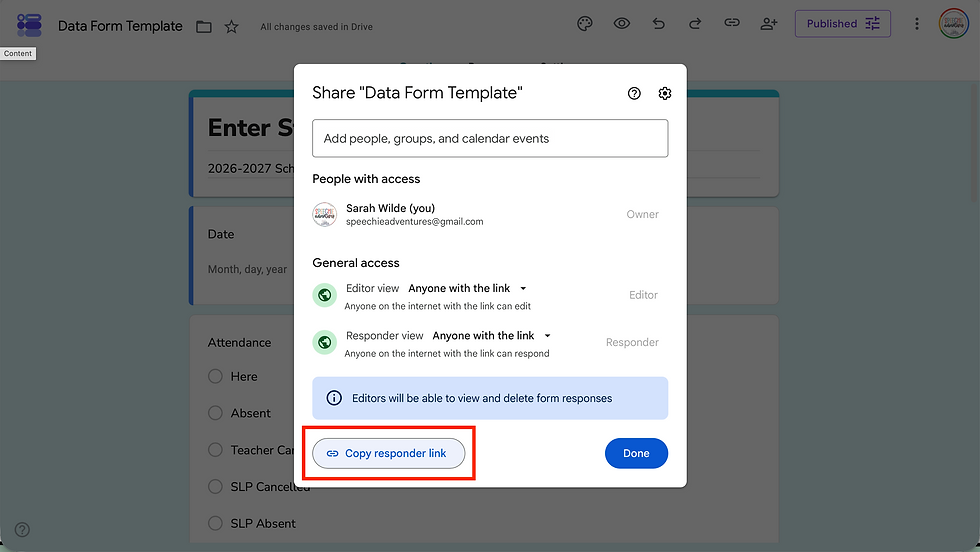
3️⃣ Go to your Google Drive and create a blank spreadsheet.

4️⃣ Name your form (I like "Data Form Links"). Add headers and paste the responder link that you copied from the Google Form.

Amazing! Now repeat this process by grabbing responder links for each of your data forms.
Creating a Google Spreadsheet
This is where you'll see all of the data you've recorded and have the ability to copy and paste it into billing software.
1️⃣ Open a Google Form and click on the "RESPONSES" tab at the top.

2️⃣ Click the "Create a new spreadsheet" bubble and click "Create" in the bottom righthand corner.

3️⃣ A new window will pop up with the spreadsheet.

🥳 YOU DID IT!
Now repeat this process so that you have a spreadsheet for each student's Google Form.
ORGANIZING TIPS
🌟 In your Google Drive, create a folder called something like "DATA FORMS".
🌟 Now make two folders: 1️⃣ Editable Data Forms and 2️⃣ Data Spreadsheets
🌟 Editable Data Forms: this is where all of those editable Google Forms will be for each student
🌟 Data Spreadsheets: this is where you can put all of the spreadsheets that will house all of your data
DAY-TO-DAY USE
At this point you have...
✔️ All of your forms created
✔️ Corresponding spreadsheets created
✔️ Organized all forms and spreadsheets in your Google Drive
✔️ A master spreadsheet with all of your responder links
So, how does this work day-to-day on the job?
After your session (or at the end of the day...week? 🫣😂), open your Google Drive
Go to you "DATA FORMS" folder and open the Data Form Links spreadsheet
Click on the student's responder link
Fill in the form and submit
That's it! 🙌🏽 🎉
ACCESSING Your DATA
Writing a progress report, completing Medicaid billing, or writing up an annual IEP?
Go to your Google Drive and open the "DATA FORMS" folder
Open the Data Spreadsheets folder
Find the student you're looking for and open their spreadsheet
Marvel at how awesome it is to have all of the data in one spot! 💕✨ Copy and paste data as needed!
FAQs
❓ What do I do when the student gets new goals?
Make a copy of the student's Data Form
Move the old form and spreadsheet into a folder labeled by the school year (e.g. 2025-2026)
Edit the new form with the new goals
Create a new spreadsheet
Add the new responder link to your "Data Form Links" spreadsheet
❓ What do I do when I get a new student?
Make a copy of your template Google Form
Edit the form
Create a new spreadsheet
Add the student and their responder link to your "Data Form Links" spreadsheet
Organize the form and spreadsheet into corresponding folders in your Google Drive
❓ What do I do at the beginning of a new school year?
You will continue using the students' data forms until the next Annual/Triennial IEP meeting where new goals are made.
Once this happens, see the "What do I do when the student gets new goals?" question above in the FAQ section.
Whew! That was a lot, but I hope it was helpful! Feel to reach out with any additional questions via email or DM me over on Instagram.


Thank you for sharing this! Much appreciation!